Chamfer (Solid)

The Chamfer function allows you to create chamfers with one or two dimensions with respect to the edges of a solid.
Access
- In the Designer tab, select Chamfers in the Solids section of the ribbon.
- Activate the Modelling tab and then select Chamfers in the Operations section of the ribbon.
- This option may also be available in the context menu accessed by a Right Mouse click.
In all cases, this opens the Chamfer - Options tab which is displayed along with the ribbon containing the Filters and Selection sections.
Procedure
- Using the Edge selection filters, select the edge(s) to which you want to add a chamfer.
- Press the Right Mouse button to validate your selection and to display the Options - Chamfer dialog box.
 (See dialog box).
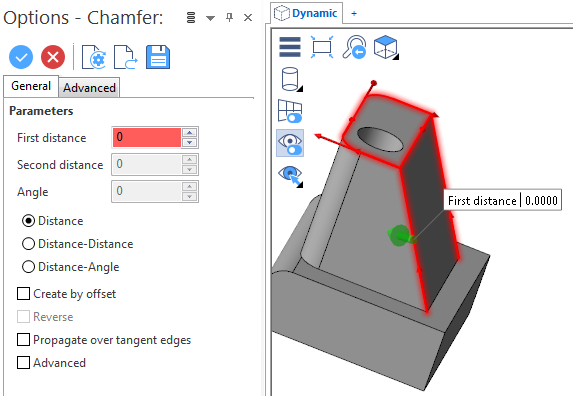
- Select the required options according to the result that you want to achieve.
The options in the Measurement menu section in the ribbon help you to define specific points. - Using the Distance/Angle slider(s), the value input box(es) or the corresponding fields in the dialog box, define the chamfer to apply.
-
Validate, either by a Right Mouse click or by clicking the
 icon in the graphic area or in the function dialog box.
 Note: If mandatory values are missing or if erroneous values are entered, an exclamation mark
  is displayed in the relevant slider value input box and the background of the corresponding parameter input box in the Options panel is displayed in red.
General Tab
The following options are available in the General tab of the Options - Chamfer dialog box:
Top Toolbar


From left to right, this toolbar displayed at the top of the option dialog box allows you to Apply the current values, to Cancel the current function, to Restore the system defaults and to Restore the defaults that have previously been saved using the Save icon.
Parameters
| First distance |
This field is always available and allows you to define the (first) chamfer distance with respect to the selected edge(s). |
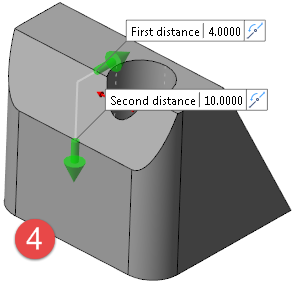
| Second distance | This field is available if the Distance-Distance option has been activated. It allows you to define different distances with respect to the selected edge(s). Clicking the  icon in the value input box in the graphic area or selecting Reverse in the dialog box allows you to invert the application of the two distances. icon in the value input box in the graphic area or selecting Reverse in the dialog box allows you to invert the application of the two distances. |
| Angle |
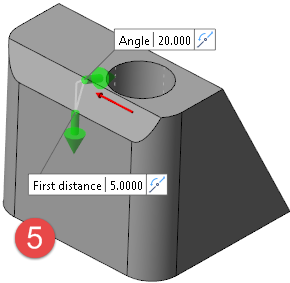
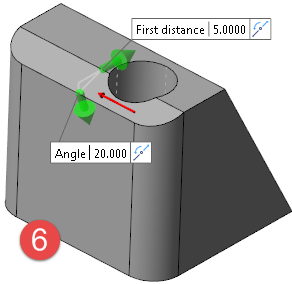
This field is available if the Distance-Angle option has been activated. It allows you to define a distance and an angle with respect to the selected edge(s). Clicking the
|
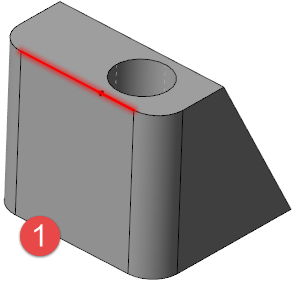
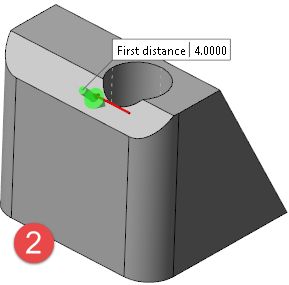
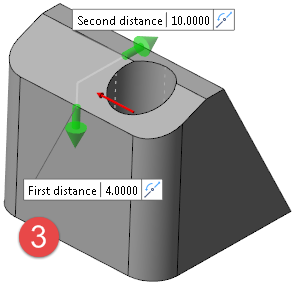

|
Selected edge |

|
Distance option active: the chamfer is created equidistant with respect to the selected edge. |

|
Distance-Distance option active: the chamfer is created according to the specified distances with respect to the selected edge. |

|
Distance-Distance option active: option active and Reverse option applied. |

|
Distance-Angle option active: the chamfer is created according to a specified distance and an angle value. |

|
Distance-Angle option active and Reverse option applied. |
| Create by offset |
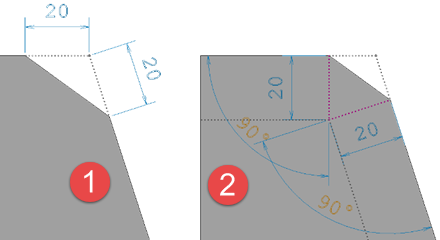
Activate this option to create the chamfer based on offsetting the adjacent faces of the selected edge and applying the chamfer on the resulting projection (
|
| Reverse | This option is available with the Distance-Distance and Distance-Angle options. It allows you to reverse the direction of application of the two values defined (see illustration above). |
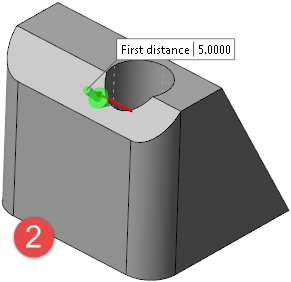
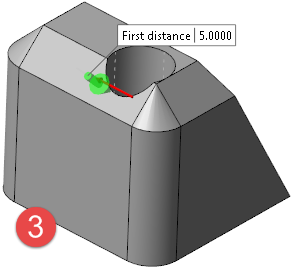
| Propagate over tangent edges |
Activate this option to propagate chamfer creation over tangent edges.
|
|
Advanced |
This option can be used when the chamfer creation fails for any reason. It attempts the creation with more relaxed tolerances and the size of the chamfer could be a little different from the value used, but remains acceptable for the user. |
Preview
Preview generation is Automatic if this option is active. Otherwise, click on the Preview button to obtain a preview in the graphic area.
For further information...
Chamfer (Solids) - Advanced Tab