Blends

The Blend function creates a constant or variable radius blend (or fillet) between the faces of a solid forming an edge. You can add blends to all edges of a face, selected sets of faces, selected edges or edge loops.
Access
- Click the icon in the Designer tab of the application.
- Activate the Modelling tab and then click the icon in the Operations section of the ribbon.
- This option may also be available in the context menu accessed by a Right Mouse click.
In all cases, this opens the Blends - Options tab which is displayed along with the ribbon containing the Filters and Selection sections.
Procedure
- Using the Edge selection filters, select the edge(s) which you want to blend. The identifiers of the selected edges are displayed in the Edges to blend list.
- Press the Right Mouse button to validate your selection and to display the Options - Blends dialog box.
 See dialog box.
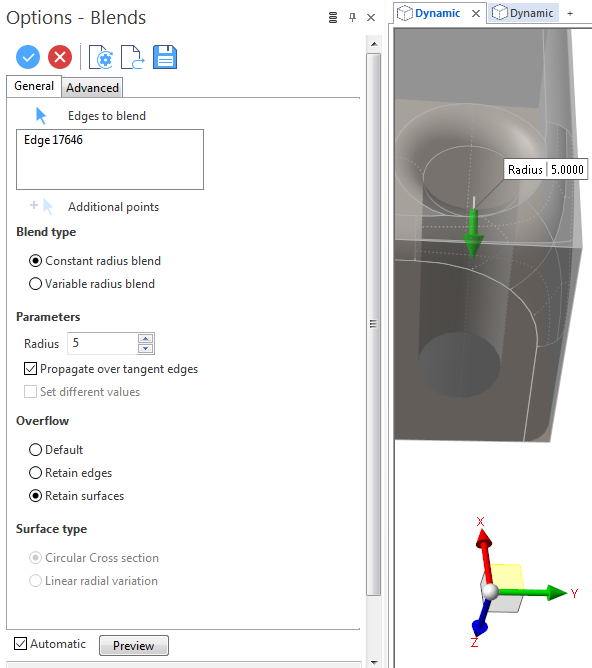
- Select the required options according to the result that you want to achieve.
The options in the Measurement menu section of the ribbon help you to define specific points. - Using the Radius slider, its value input box or the Radius field in the dialog box, define the blend radius to apply.
- Validate, either by a Right Mouse click or by clicking the
 icon in the graphic area or in the function dialog box.
 Note: If mandatory values are missing or if erroneous values are entered, an exclamation mark
  is displayed in the relevant slider value input box and the background of the corresponding parameter input box in the Options panel is displayed in red.
Blend Options - General Tab
The following options are available in the General tab of the Options - Blends dialog box:
Top Toolbar


From left to right, this toolbar displayed at the top of the option dialog box allows you to Apply the current values, to Cancel the current function, to Restore the system defaults and to Restore the defaults that have previously been saved using the Save icon.
Edges to blend
Clicking on the  icon allows you to switch back into the edge selection mode allowing you to modify your selection by adding / removing edges.
Use the  icon (or Right Mouse click) to Validate your selection. The
  icon (or [Esc]) cancels the selection mode.
Blend Type
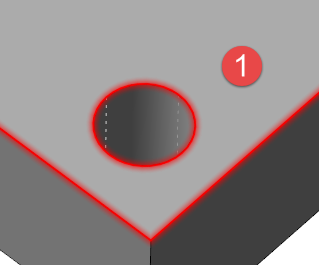
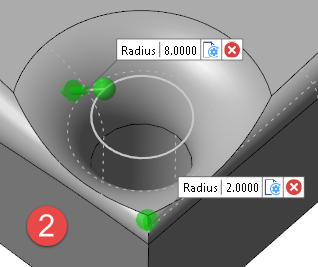
 icon, you may add as many additional points as you want (see below).
  on the selected edges
  to cancel and close the radius input box for the corresponding location. In this case, the radius entered in the Parameters section of the dialog box will be applied.
Parameters
|
Radius |
Use this input field to enter the radius to be applied for blending. In the case of Variable radius blend, this will be the default value which may be restored by clicking on the |
|
|
When the Variable radius blend option is active in the Blend type section of the dialog box, clicking on this icon allows you to select other points to define a complementary location for radius application. The number of points is not limited.
The points |
|
Propagate over tangent edges |
Activate this option to propagate blend creation over tangent edges.
|
|
Set different values |
This option is available when the Constant radius blend option is selected as the Blend type. It is similar to variable radius blend but displays a simple radius value input box and does not allow you to create complementary points.
|
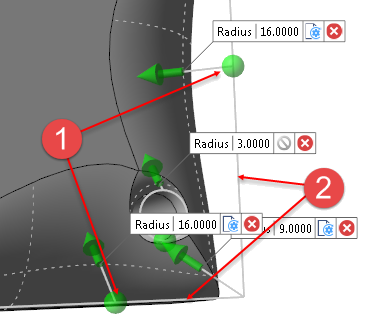
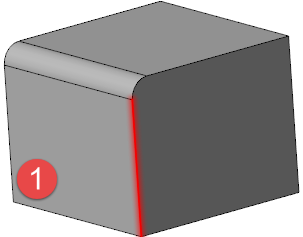
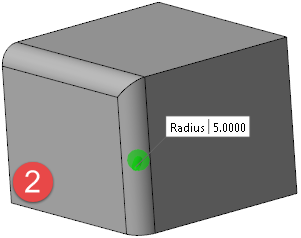
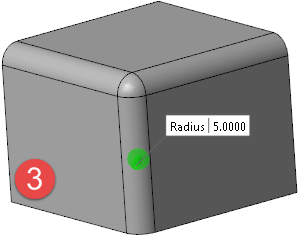
 Propagate option active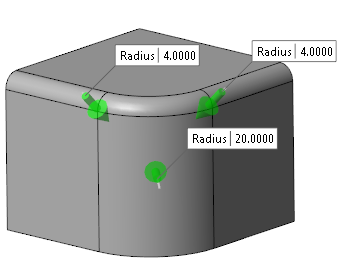
Overflow
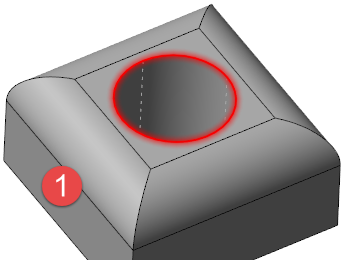
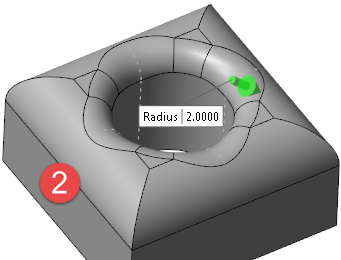
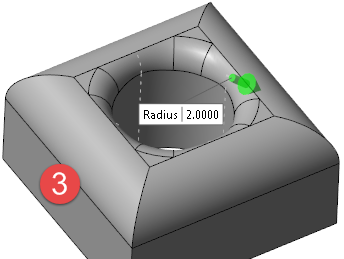
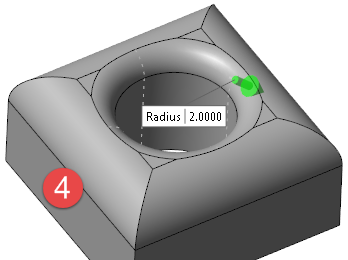
This option defines how faces are handled when the newly created blends overlap existing faces:
|
Default |
Selecting this option applies the defaults from the CAD engine ( |
|
Retain edges |
Activate this option if you want to retain the edges of the created blend and any adjacent faces ( |
|
Retain surfaces |
Activate this option if you want to retain the newly created blend as a surface ( |
 in the illustration below).
The following example shows the result for the selected edge  with respect to the existing blends:
Surface Type
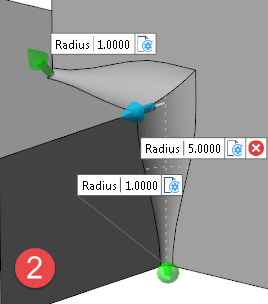
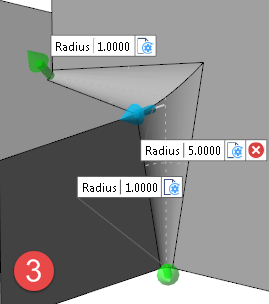
If Variable radius blend is active in the Blend type section, the following options are available:
|
Circular cross section |
Selecting this option creates a rounded blend ( |
|
Linear radial variation |
Selecting this option creates a straight blend ( |
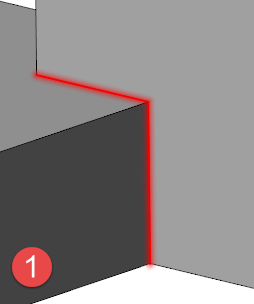
The following example shows the result for the selected edges :
Preview
Preview generation is Automatic if this option is active. Otherwise, click on the Preview button to obtain a preview in the graphic area.
For further information...