Layers

Each entity within a workfile is allocated to only one of the 32768 specific layers supported by the application.
Each layer can be considered as a transparent overlay such that when stacking all the layers on top of each other, you obtain an illustration of the whole workfile contents.
Layers are particularly useful as they simplify the visualisation of complex designs.
The Layer Manager allows you to manage the assembly structure, layer attribution, layer group creation, filtering, etc.
Access
- Click the Layers tab which, by default, is displayed vertically on the left side of the user interface.
- Click on the Windows drop-down list in the upper right corner of the user interface and then select Layers.
- You may also type Layers in the Quick Search field and then select Layers from the result list.
After activation of the Layer management function, the following panel is displayed:
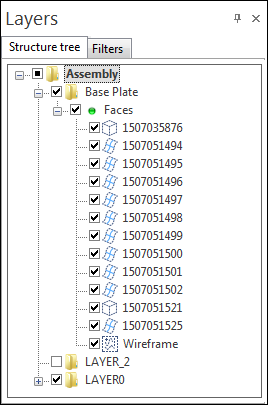
- Next to the Structure tree tab, this panel contains a Filter tab allowing you to set additional filters for entity display in the graphic area. The interaction between the active nodes/layers and these filters defines which entities are actually displayed in the graphic area.
- Right clicking on the Assembly entry in the structure tree displays a context menu allowing you to switch to the Layers View which is an alternative presentation of the layers contained in the project.
For further information...