Rotate

The Rotate function allows you to apply a rotation to the selected entities around any axis.
 Note:
Note:
- To move or copy features by rotation inside a body, use the Rotation function in the Pattern section of the ribbon in the Solids tab.
Access
- In the Designer tab, click the icon in the Standard section of the ribbon.
- Type rot in the Quick Search field and select Rotate from the result list.
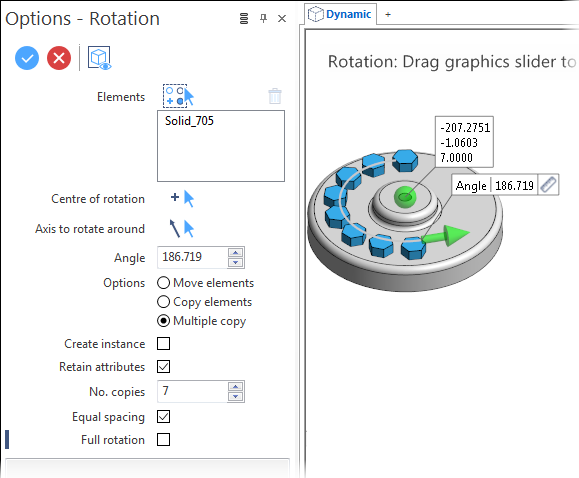
This opens the Rotation - Options tab which is displayed along with the ribbon containing the Options, Filters and Selection sections. In addition, the Options - Rotation dialog box is displayed.  See dialog box.
Procedure
In the following steps, confirmation by Right Mouse click may be required if Multi-select  is active in the Selection options.
- Using the Object selection filters, select the entities to rotate.
- Using the Point selection filters, define a rotation point.
- Using the Direction options, select the rotation axis.
- Select the required options according to the result you want to achieve.
- Click the Angle slider arrow and drag it to the required angle. You may also enter the angle value in the slider input box or in the Angle field of the dialog box. Clicking on the Measurement
 icon on the slider label displays the Measurement Menu which helps you to define specific points.
 -
Validate, either by a Right Mouse click or by clicking the
 icon in the dialog box.
Note:
- You may use the [W] key of your keyboard to enable/disable the wireframe preview when bodies are moved.
Dialog Box Options
The following options are available in the Options - Rotation dialog box:
Top Toolbar


These two icons at the top of the dialog box allow you to Apply the current values or to Cancel the current function.
Preview generation is Automatic if this option is active in the dialog box menu accessed by clicking on the  icon. If this option is not active, click on the
  icon. If preview generation is not possible, the icon is greyed out.
Elements
The Elements field lists the identifiers of the selected elements.
Clicking on the  icon switches back into the selection mode allowing you to modify your selection by selecting/unselecting elements in the graphic area. Use the
  icon (or Right Mouse click) to Validate your selection. The
  icon (or [Esc]) cancels the selection mode. If you want to delete elements within your selection, select the required elements and then click the
  icon above the list field. You may use the [Ctrl] + [A] shortcut to select all of the elements.
Centre of rotation
Allows you to define the centre of rotation. The centre point is then represented by a green sphere that you can drag to another location.
Clicking on the  icon switches back into the point selection mode allowing you to select another point in the graphic area.
Axis to rotate around
Allows you to define the rotation axis. Clicking on the  icon switches back into the axis/vector selection mode allowing you to select another direction in the graphic area, using the direction options, if required.
Parameters
|
Angle |
Use this field to define the angle for rotational move or copy of the selected faces. Clicking on the Measurement |
|
Options |
Move elements: Activate this option if you want to apply a rotational translation to the selected elements. Copy elements: Activate this option if you want to make a single copy leaving the initially selected elements in place. Multiple copy: Activate this option if you want to make several copies of the selected elements. |
|
Create instance |
This function is only available in Copy mode. If it is active, an association is created between the original entities and the copy or copies. Any geometric modification made to one of them will also be applied to the other one. |
In the following examples, the blue faces were selected, the green sphere is the centre of rotation in the Z-axis:
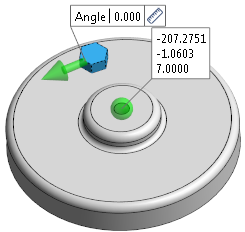
Move elements active: The selected elements are moved around the rotation axis by the defined angle value:
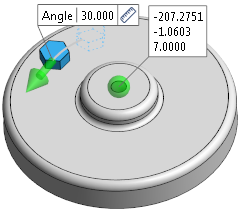
Copy elements active: A single copy is moved around the rotation axis by the defined angle value leaving the initially selected elements in place:
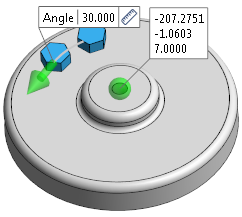
The following fields become available if the Multiple copy option is active.
|
No. copies |
Enter the number of copies to be made in this field. |
|
Equal spacing |
Activating this option creates an equal distribution of the created copies:
|
|
Full rotation |
This option becomes available if the Equal spacing option is active:
|
In the following examples, Multiple copy is active and the number of copies is set to 6.
If none of the other options is active, the specified number of copies is created and spaced as per the specified angle:
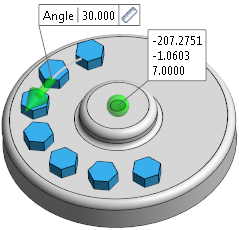
Equal spacing active: The specified number of copies is created within the specified angle:
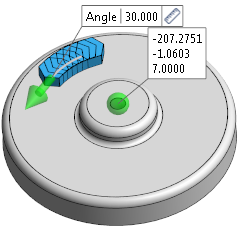
Full rotation active: The specified number of copies represents the total number of created entities which are equally spaced within 360°:
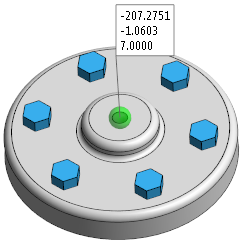
In the following example, the Create instance option was active when creating the entities. Moving the upper face of one of the entities modifies the shape of all of them:
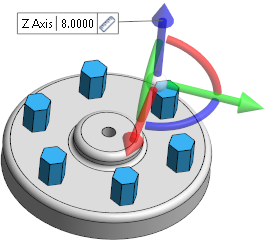
Information Field
The field at the bottom of the Options panel displays information about missing data, errors or actions.