Cuboid

The Cuboid function is used to create a solid body by defining a rectangular base and a height.
Access
- In the Designer tab, click the icon in the Solids section of the ribbon.
- Activate the Solids tab and then click the icon in the Forms section of the ribbon.
- Type cube in the Quick Search field and select Cuboid from the result list.
- You may also use the Ctrl + B shortcut key. This key is defined by default but another key combination may have been selected. Refer to Shortcut keys for further information.
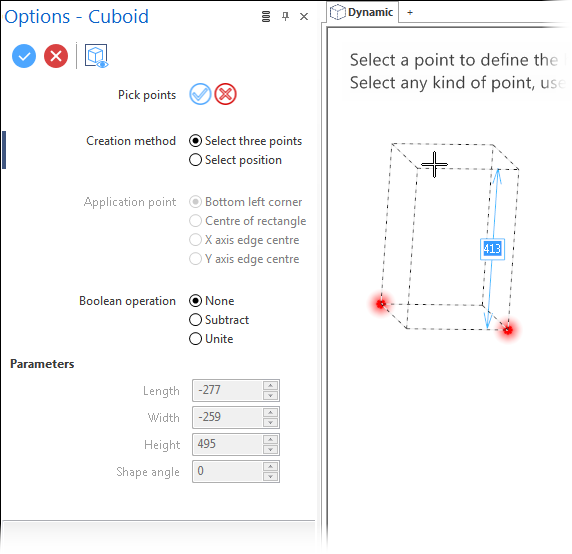
In all cases, this opens the Cuboid Options tab which is displayed along with the ribbon containing the General, Filters and Attributes sections. The Options - Cuboid dialog is also displayed.  See dialog box.
Procedure
- Select the Creation Method. When you start the function for the first time, the Select three points creation method is active.
- Select the Application Point for the solid block to be created and, if required, the Boolean Operation.
Select Three Points Option active
- In the graphic area, click three points:
- The first point is the application point.
- The second point defines the size of the base rectangle.
- The third point defines the height of the block.
The dimensions are displayed as you move the mouse.
Validation is automatic when you click the third point.
Select Three Points Option active - Using Labels
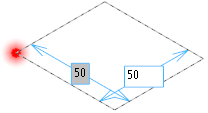
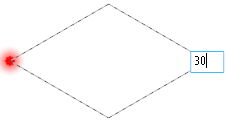
Alternatively, you may also use the distance labels to enter the required dimensions:
- Navigate from one input field to the next one using the [Tab] key of your keyboard.
- Press [Enter] after having defined the base rectangle to activate the height input field.
- Enter the required height and press [Enter] again to validate the block.
 Note:
Note:
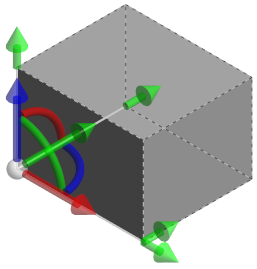
If you want the slider widget to be displayed, e.g. to change the position of the block:
- Press the [Esc] key of your keyboard before clicking on the third (height) point if you use the point picking method, or
- Press the [Esc] key of your keyboard before pressing [Enter] after having entered a value in the height label.
In this case, the Creation method switches to Select position.
Select Position Option active
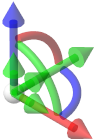
- In the graphic area, click on the application point of the cuboid to display the sliders along with a preview of the cuboid to be created based on the most recently used parameters.
Using the sliders in the graphic area:
- Click and hold down the Left Mouse button on the Length slider and drag it to the required length. Click to set the length.
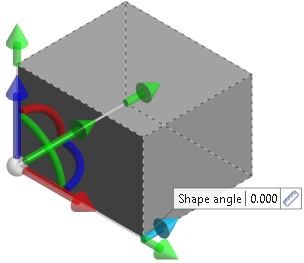
- If required, use the perpendicular second arrow displayed with the length slider to define a Shape angle.
- Using the same method, define the Width and the Height of the cuboid.
-
Validate, either by a Right Mouse click or by clicking the
 icon in the dialog box.
 - You may click the active slider arrow to adjust the value of the corresponding dimension in the value input box of the slider label.
- Clicking on the Measurement
 icon on the slider label displays the Measurement Menu which helps you to define specific points. This icon is also available alongside the active value input field in the dialog box.
 -
Refer to the Slider Positioning and Movement section for further information about slider usage.
- Pressing the [W] key of your keyboard allows you to toggle between wireframe and shaded preview display of the entity being created.
Notes:
Note: If mandatory values are missing or if erroneous values are entered, an exclamation mark  is displayed in the relevant slider value input box and the background of the corresponding parameter input box in the Options panel is displayed in red.
Locking Dimension Labels
The values that you enter in dimension labels in the graphic area can be locked.
For example, when creating a segment, you can enter a value for the inclination angle and then drag your cursor to change the length of the segment, while keeping the same inclination angle value:
- Use the [Tab] key until you activate the required dimension label.
- Enter the value.
- Press Enter to validate.
- The value is locked and the dimension label is greyed out.
To unlock the dimension label:
- Use the [Tab] key until you activate the dimension label.
- Press the [Esc] key.
Dialog Box Options
The Options - Cuboid dialog box contains the following options:
Top Toolbar


These two icons at the top of the dialog box allow you to Apply the current values or to Cancel the current function.
Preview generation is Automatic if this option is active in the dialog box menu accessed by clicking on the  icon. If this option is not active, click on the
  icon. If preview generation is not possible, the icon is greyed out.
Method
|
Pick points |
Clicking the |
 icon allows you to select another start or position point.
Creation method:
|
Select three points |
Allows you to define a cuboid by point selection: two points to define the base rectangle and a third one to define the height. |
|
Select position |
Activate this option to start the cuboid creation by clicking on a position point:
|
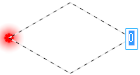
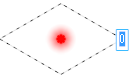
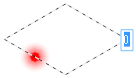
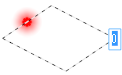
Application Point
Select either Bottom left corner, Centre of rectangle, X axis edge centre or Y axis edge centre.
Boolean Operation
This section allows you to select a Boolean operation to apply during solid creation. Select either None, Subtract or Unite.
Parameters
The values in this section are automatically updated as you move the sliders in the graphic area. You may also manually enter or adjust the corresponding values.
Note: Clicking on the Measurement icon alongside the active value input box displays the Measurement Menu which helps you to define specific points.
|
Length |
Allows you to define the length of the cuboid. |
|
Width |
Allows you to define the width of the cuboid. |
|
Height |
Allows you to define the height of the cuboid. |
|
Shape angle |
Allows you to define an angle with respect to the application point: |
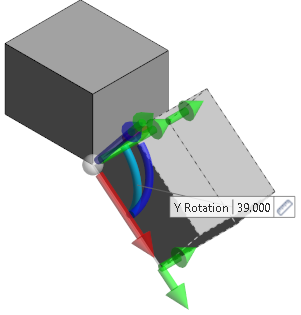
In addition to the dimension arrows, using slider positioning if required, you may define the position and the inclination of the solid being created.
Information Field
The field at the bottom of the Options panel displays information about missing data, errors or actions.
Note:
- Use the Attributes toolbox to modify the created entities.