Offset segments
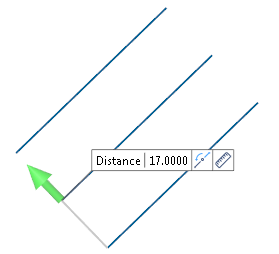
Uniform Offset
- Select the reference segment(s).
- Define the offset distance:
- By dragging the Distance arrow in the graphic area.
- By entering the value in the Distance field in the graphic area or in the dialog box.
- By clicking on the Measurement
 icon, in the graphic area or in the dialog box (next to the active Distance field), and taking measurements.
 - Enter the number of copies in the No. copies field.
- If necessary, activate the Create line option to create a line instead of a segment.
- Validate, either by a Right Mouse click or by clicking the
 icon in the graphic area or in the function dialog box.
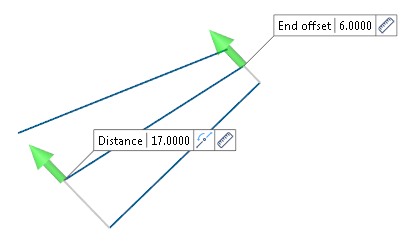
Variable Offset
- Select the reference segment(s).
- Select the Active option in the Variable offset section of the dialog box.
- Define the offset distance:
- By dragging the Distance arrow in the graphic area.
- By entering the value in the Distance field in the graphic area or in the dialog box.
- By clicking on the Measurement icon, in the graphic area or in the dialog box (next to the active Distance field), and taking measurements.
- Define the End offset:
- By dragging the End offset arrow in the graphic area.
- By entering the value in the End offset field in the graphic area or in the dialog box.
- Enter the number of copies in the No. copies field.
- If necessary, activate the Create line option to create a line instead of a segment.
- Validate, either by a Right Mouse click or by clicking the icon in the graphic area or in the function dialog box.
 Note:
Note:
- Use the Attributes toolbox to modify the created entities.
Side
Selecting the Reverse side option in the dialog box or clicking the  icon in the graphic area allows you to create the offset on the other side of the reference element.
Selecting the Both sides option allows you to create the offset on both sides of the reference element.
Attributes
Selecting the Retain original elements option allows you to keep the reference element after validating the function. It also makes the Retain attributes option available.
Selecting the Retain attributes options allows you to apply the attributes (colour, style) from the reference element to the offset/projected element.
Top Toolbar


These two icons at the top of the dialog box allow you to Apply the current values or to Cancel the current function.
Preview generation is Automatic if this option is active in the dialog box menu accessed by clicking on the  icon. If this option is not active, click on the
  icon. If preview generation is not possible, the icon is greyed out.
For further information...