System Options - User Interface
The User interface parameters of Designer can be set from the System Options area: the system must be restarted for them to be set as default and be applied each time a new session is started.
Access
1. Click on the File > Settings > Options icon.
2. Select the User interfaceoption from the dialog displayed and enter the required values.  See dialog box.
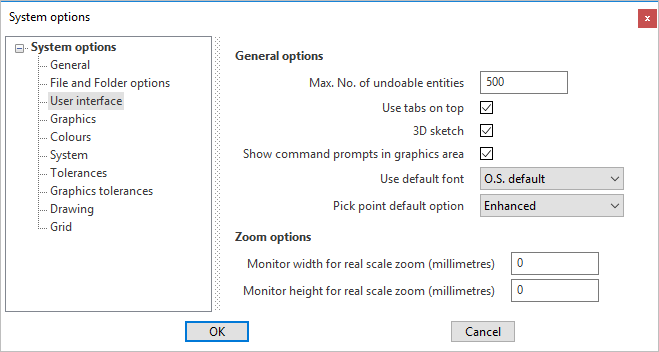
Parameters description
General options
|
Max. No. of undoable entities |
Allows you to sets the number of Undo primitives on entities. When the value is reached a message prompts you to decide to continue or not with the Undo operation. As the Undo log occupies memory, the system gives you the opportunity to reset the log at the required interval. |
|
Use tabs on top |
Allows you to define the position of the tabs in the docked dialog boxes. |
|
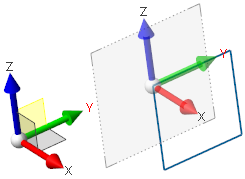
Allows you to define sketches on each orthogonal view instead of working only on the current workplane. If this option is active (default setting) and you select another plane, either by clicking on the corresponding plane representation of the trihedron displayed in the lower left corner of the graphic area or by selecting the required plane in the Status bar, the plane changes (YZ plane in the following example), but the axes are still aligned with the workplane:
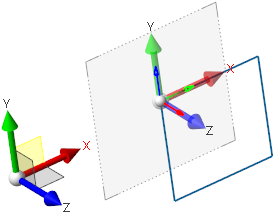
If this option is not enabled, a new temporary workplane is created with respect to the selected side (displayed in red in the Workplane Manager). This temporary workplane is deleted as soon as you activate another workplane or select the XY Top plane again. The following example shows the plane management if the 3D sketch option is not enabled:
The coordinate display in the Status bar adapts accordingly. |
|
|
Show command prompts in graphics area |
Allows you to visualise the command prompts also in the top left side of the graphic area. If not checked the prompts will be displayed only on the bottom left side of the screen.
|
|
Use default font |
Allows you to set the default font size of menus and messages by choosing between:
|
|
Pick point default option |
Allows you to choose the default icon active in the point selection filters, when the pick point operation has to be applied:
|
 .
. .
. .
. .
. .
. .
. .
. .
. .
. .
. .
. .
.Zoom options
|
Monitor width/height for real scale zoom (millimetres) |
Allows you to define the real scale (1:1) of the objects in the graphic area calculated in relation to the physical monitor dimensions rather than the Operating System (O.S.) internal values. |
 Note: Some changes may not be implemented until the application is restarted.
A message to this effect is displayed in the bottom right corner to alert users.
For further information...
From the System Options area, it is also possible to set the parameters of the following options: